2.1 How to use AI Code Edit in the Notebook ?
Notebook

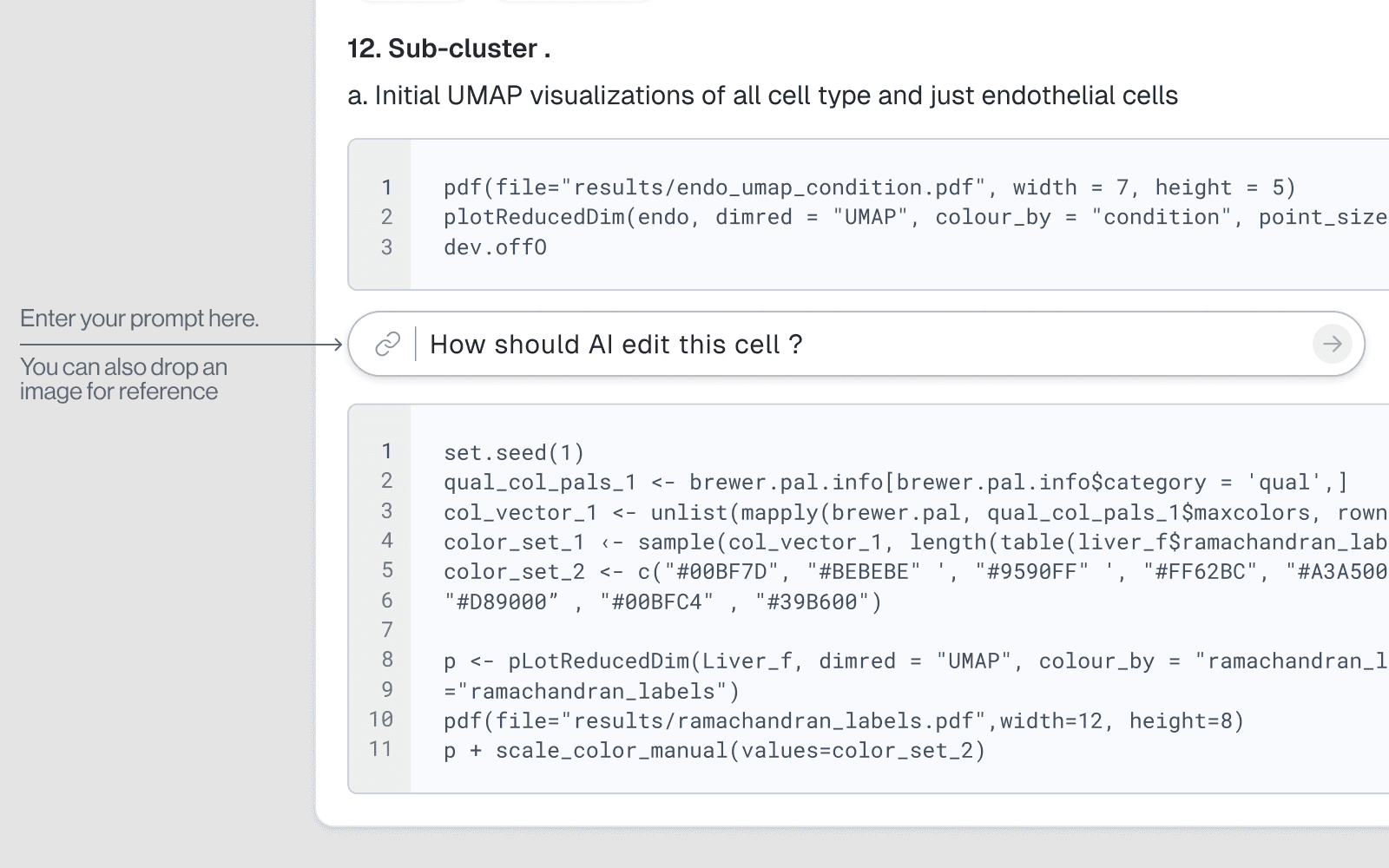
Drylab's notebook has a built-in AI inline code editor that lets you modify existing cells using natural language — no manual rewriting required.
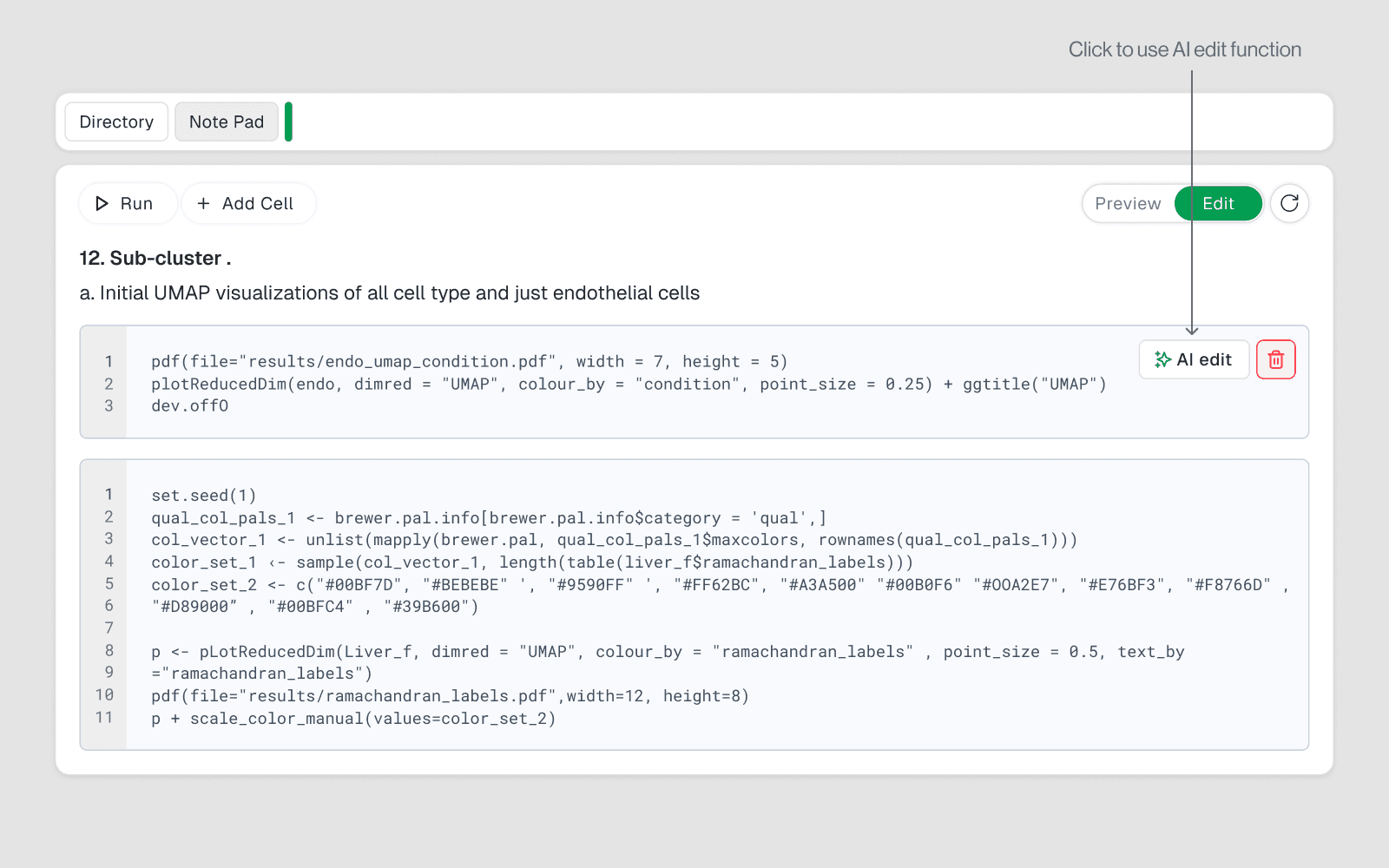
How to Access It
Click on any code cell in the notebook
Look for the AI edit button (pencil/magic icon) in the cell toolbar
Type your instruction in plain English
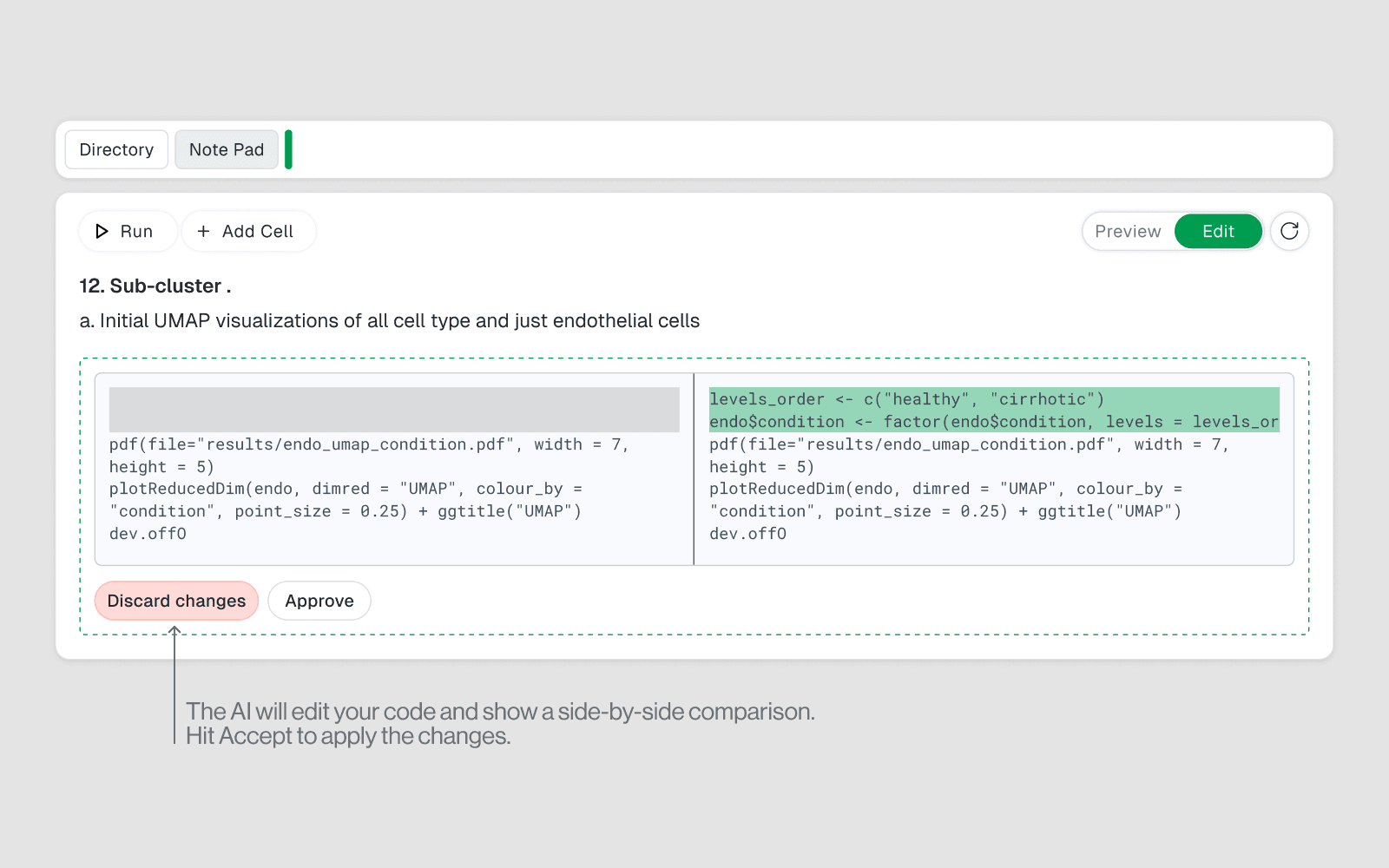
The AI rewrites the cell in-place and re-executes it
What You Can Do With It
Task | Example Instruction |
|---|---|
Fix a bug | "Fix the KeyError on column 'gene_id'" |
Change parameters | "Change the number of clusters from 5 to 10" |
Refactor code | "Rewrite this using a for loop instead" |
Add comments | "Add inline comments explaining each step" |
Optimize | "Make this more memory efficient using chunking" |
Extend logic | "Add error handling if the file does not exist" |
Under the Hood
When you use AI code edit, it maps to the edit or edit_and_move action:
edit— modifies the cell in-place. Best for simple, isolated fixes (typos, parameter tweaks) when no new cells were added after it.edit_and_move— deletes the old cell and appends a corrected version at the end. Used when the cell has been followed by debug/install cells, ensuring the notebook still runs top-to-bottom correctly.
Best Practices
Be specific in your instruction. "Change alpha to 0.05" works better than "fix the stats."
Use it for targeted edits, not full rewrites — for major changes, ask for a new cell instead.
Check the output after edit. The cell re-runs automatically; verify the result matches your intent.
Notebook stays reproducible. Every AI edit is recorded in the
.ipynbfile, so the full edit history is preserved.