2.3 How to add a new cell in Notebook ?
Notebook

There are two ways to add content — manually in the UI, or via the AI assistant.
Manual UI (Edit Mode)
First, switch to Edit Mode by clicking the Edit button at the top of the notebook.
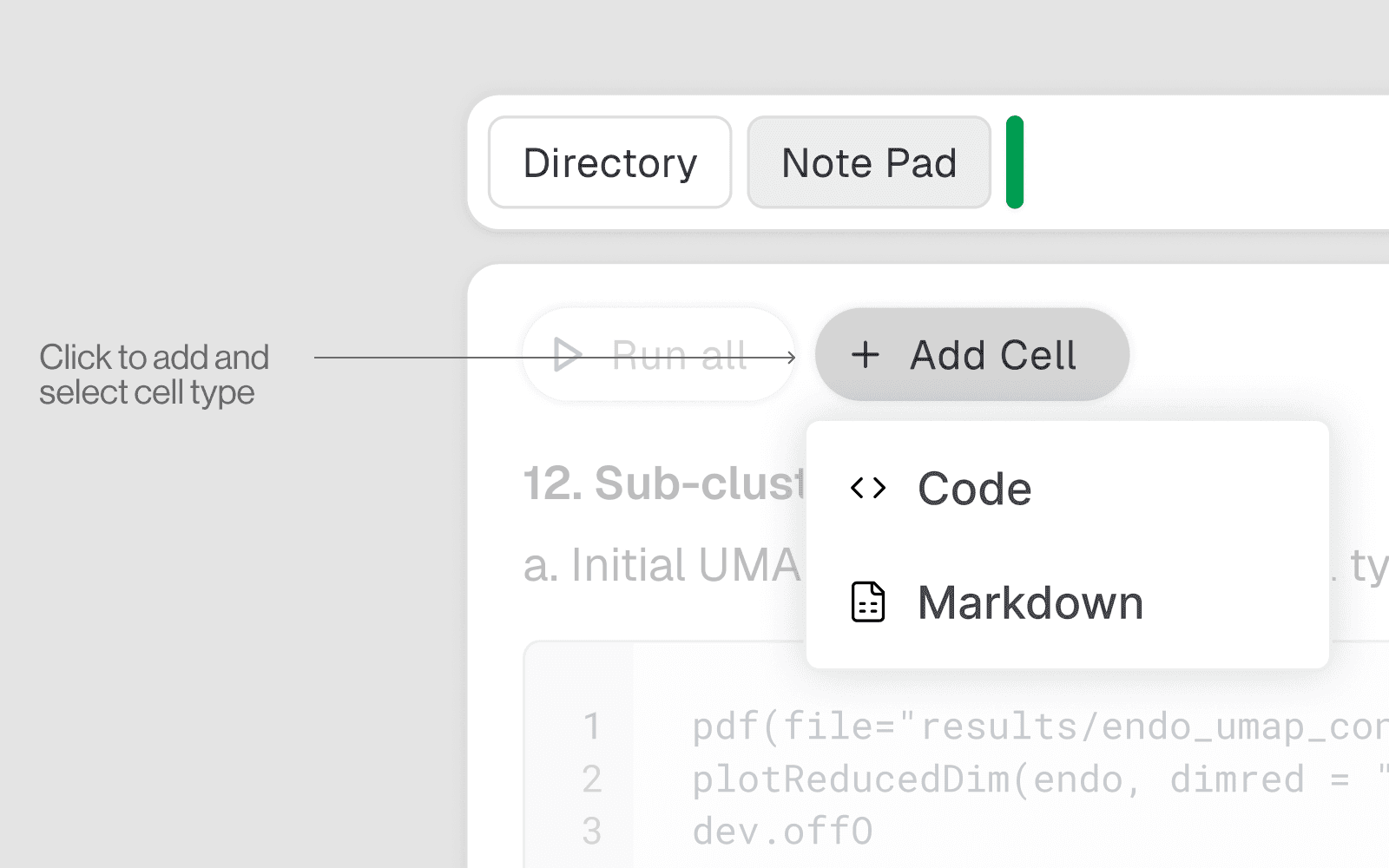
Use the + Add Cell button in the notebook toolbar to add what type of cell you want to add (Markdown or Code) making sure you use the right syntax for each type.
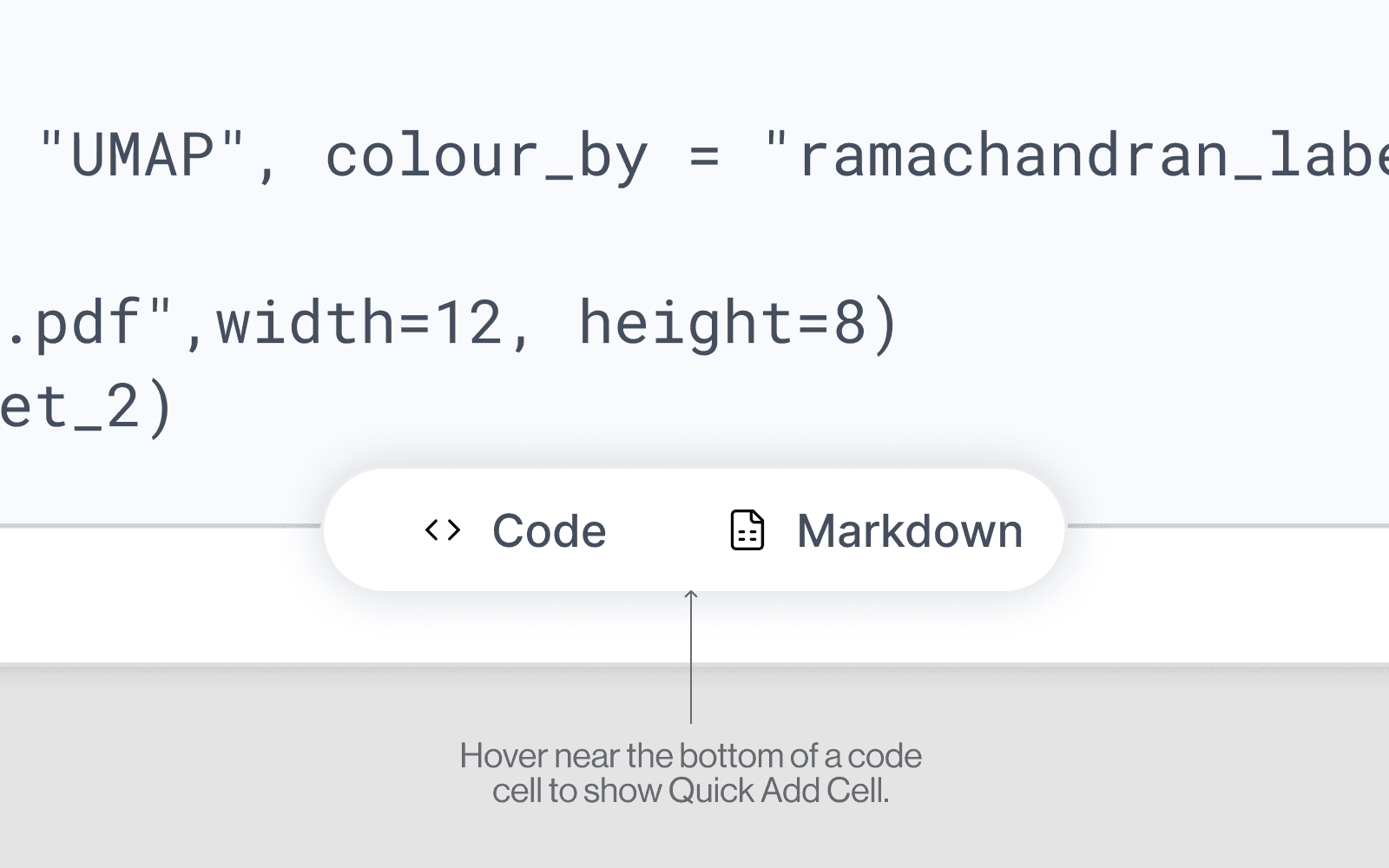
When you hover near the bottom edge of any code cell, a small poppup appears, allowing you to quickly add a new cell and choose its type — whether it’s code, markdown.
Ask the AI Assistant.
Simply describe what you want in the chat and the AI will add a properly formatted cell at the correct index automatically. Examples:
What you type | What gets added |
|---|---|
"Add a markdown cell explaining this plot" | Formatted markdown cell |
"Add a cell to load my CSV file" | Code cell with |
"Add a section header for Data Cleaning" | Markdown cell with |
"Add a cell to install scanpy" | Code cell with |