2.2 How to run Cells in Notebook ?
Notebook

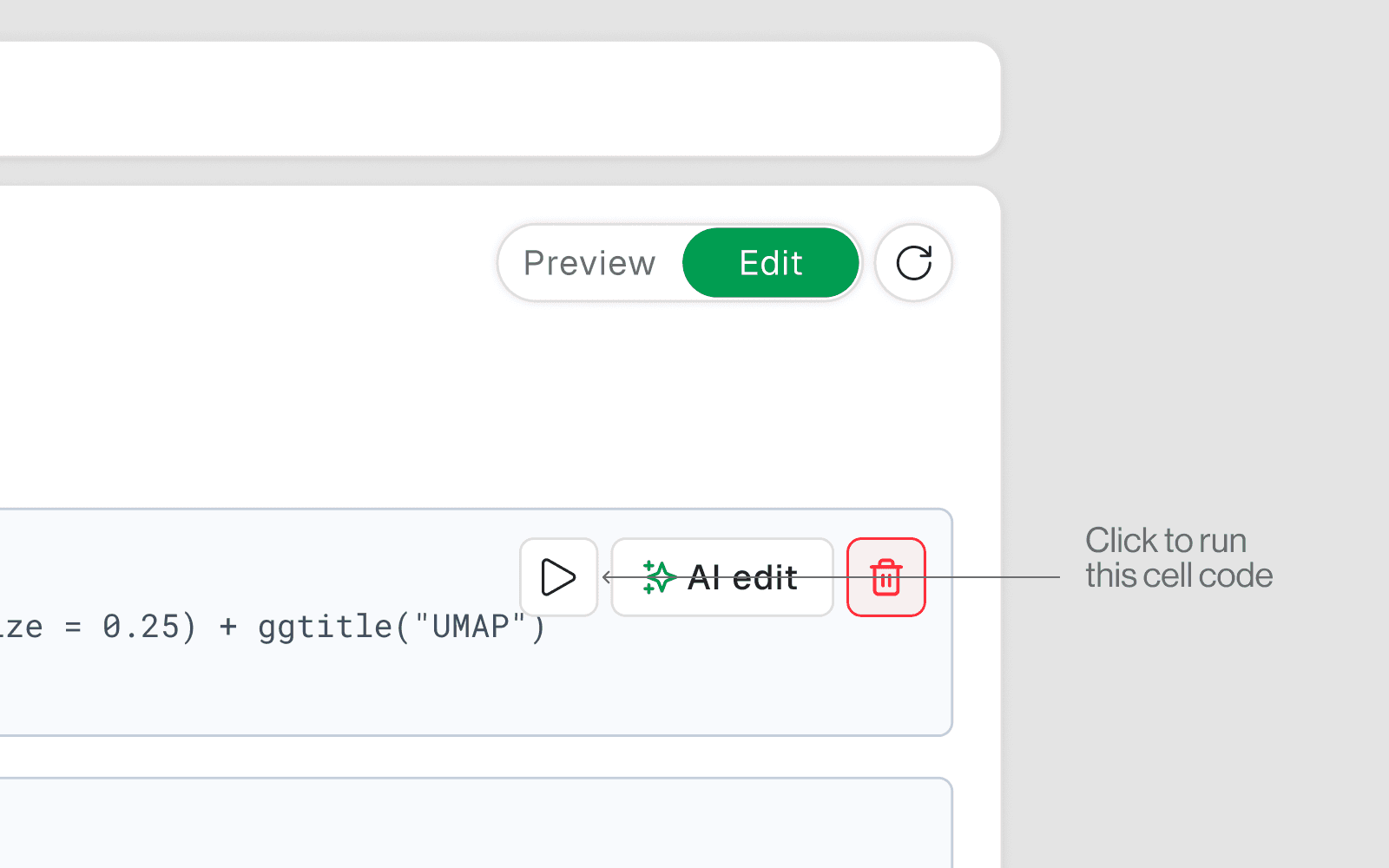
Run a Single Cell
Click inside the cell hit the “Run button” or press Ctrl + Enter to run the cell
Use this when testing a specific step, debugging, or iterating on one piece of logic
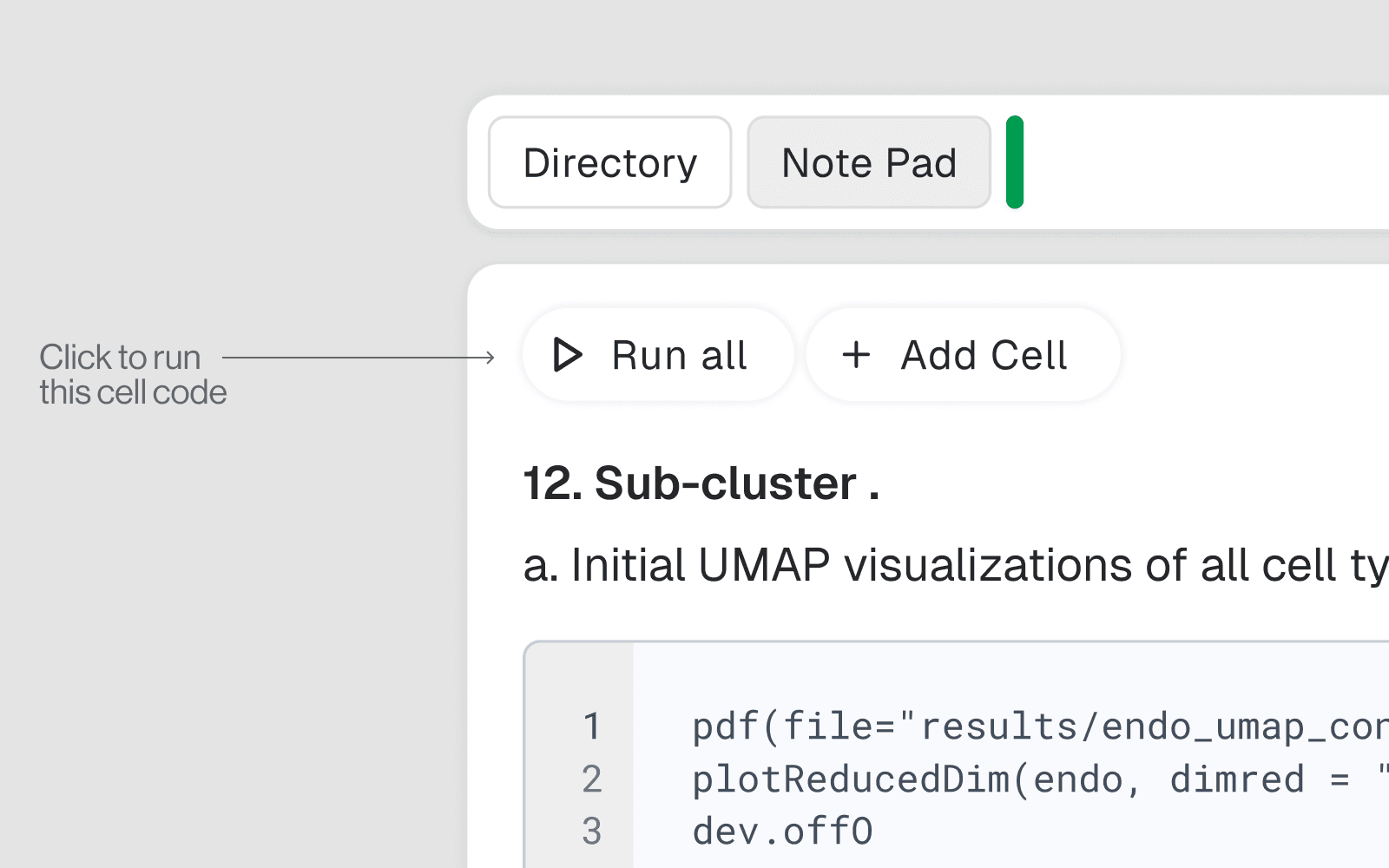
Run All Cells
Use the Run All button (double-triangle / play-all icon) in the toolbar
Executes every cell from top to bottom in order
Use this when you want to reproduce the full analysis from scratch, after restarting the kernel, or before sharing results
When to Use Each
Situation | Action |
|---|---|
Testing a new function or plot | Run single cell |
Fixing a bug in one step | Run single cell |
Starting a fresh session | Run all cells |
Verifying reproducibility end-to-end | Run all cells |
Reviewing results without changing anything | Preview mode |
Writing or modifying code | Edit mode |
Key Rule
Always ensure your notebook runs correctly top-to-bottom in order — this is what guarantees reproducibility. If you edit a cell in the middle, re-run all cells below it to confirm nothing downstream breaks.