1.6 Selecting a Sandbox (Machine Instance)
Get Started

The Sandbox is the compute environment your analysis runs on. You select it when creating a new analysis or can change it from within a session.
How to Select a Sandbox
Click New Analysis or open Settings in an existing session
Look for the Instance / Sandbox Selector
Choose the machine that fits your task or setup your own local runtime
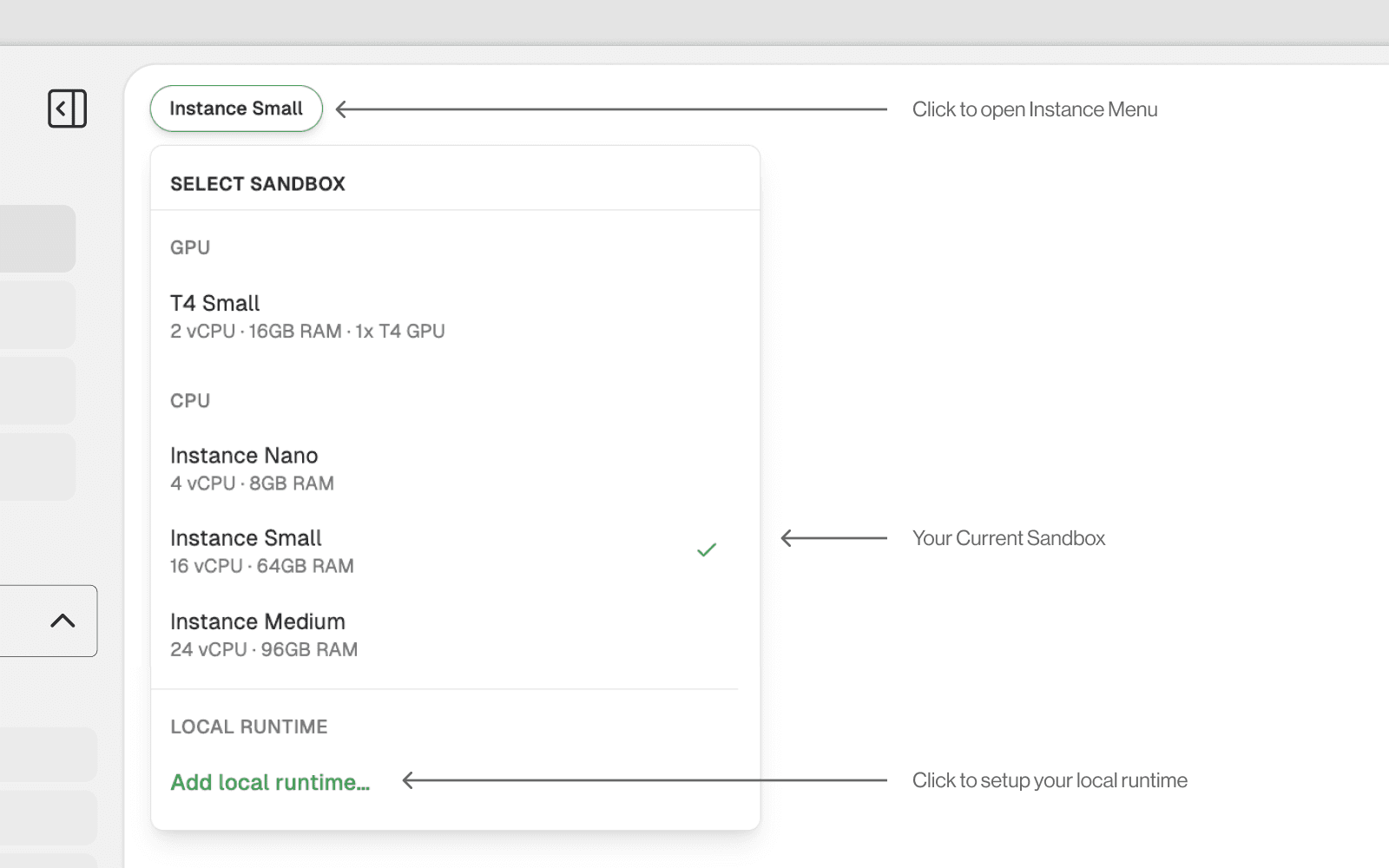
Available Instance Types
Instance | CPU | RAM | GPU | Best For |
|---|---|---|---|---|
Instance Nano | 4 vCPU | 8 GB | None | Quick queries, light exploration |
Instance Small (default) | 16 vCPU | 64 GB | None | Standard analysis, most workflows |
Instance Medium | 24 vCPU | 96 GB | None | Large datasets, multi-sample integration |
T4 Small | 2 vCPU | 16 GB | 1x T4 GPU | Deep learning, RAPIDS, large scRNA-seq |
When to Upgrade Your Sandbox
Situation | Recommended Instance |
|---|---|
Loading and exploring a small dataset | Nano or Small |
Standard scRNA-seq analysis (<100k cells) | Small |
Large genome assembly or WGS | Medium |
Multi-sample integration (>5 samples) | Medium |
Protein folding / docking locally | T4 Small (GPU) |
scRNA-seq >100k cells with RAPIDS | T4 Small (GPU) |
Deep learning model training | T4 Small (GPU) |
Switching Sandbox Mid-Session
Open the instance selector (top-right of the session, or settings panel)
Choose a new instance type
The environment restarts with the new resources
Your Vault files are preserved — only in-memory variables are lost